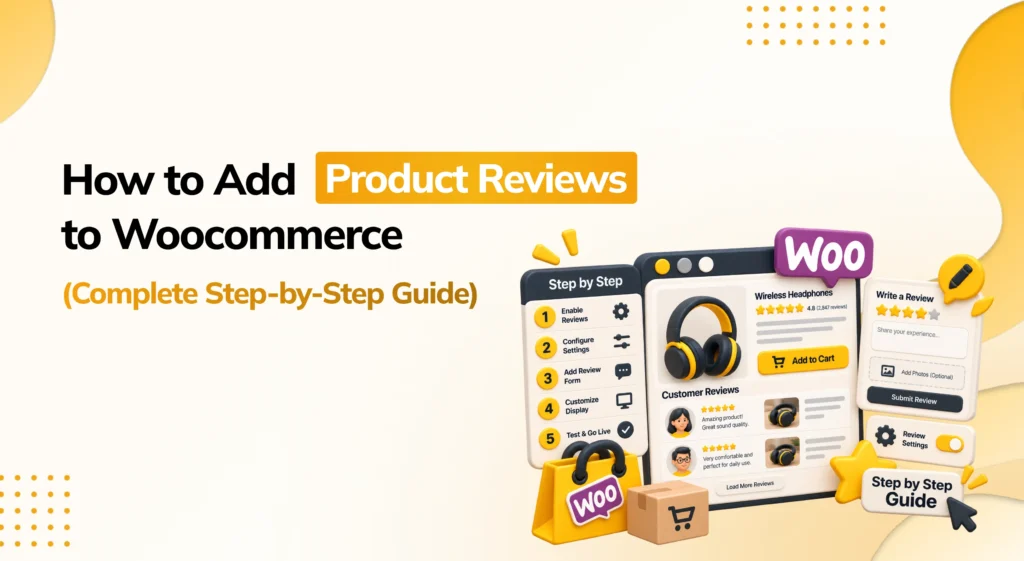
If shoppers can’t see proof that other people bought and liked your products, they hesitate — and hesitation kills conversions. Product reviews are one of the highest-ROI features you can add to a WooCommerce store, directly influencing trust, click-through rate from Google search, and add-to-cart decisions.
The problem is that WooCommerce’s built-in review system is basic. There’s no photo or video upload, no automated “please review your order” emails, no verified buyer badges, and no Google rich snippet support out of the box.
In this guide, you’ll learn how to add product reviews to WooCommerce the right way — using the Hyoka Product Reviews plugin — covering everything from installation to AI-powered review summaries and SEO star ratings in search results.
Why Product Reviews Matter for Your WooCommerce Store

Before diving into setup, it’s worth understanding why this feature deserves priority.
They Build Social Proof and Trust
Shoppers actively look for star ratings and written feedback before buying, especially on unfamiliar stores. A product page with zero reviews reads as untested — or worse, unpopular.
They Add Authentic User-Generated Content (UGC)
Customer photos and videos are more persuasive than polished product photography because they show real-world use, fit, and quality.
They Improve Click-Through Rate in Search
Rich snippets that display star ratings directly in Google search results make your listing stand out from competitors — often before a shopper even lands on your site.
They Reduce Cart Abandonment
Detailed, verified feedback answers pre-purchase objections (sizing, durability, shipping speed) before a customer needs to contact support.
They Keep Your Site Fresh for SEO and AI Answer Engines
Regularly updated reviews give search engines — and AI-driven answer engines — new, keyword-rich content to crawl and cite.
With that context established, here’s exactly how to set it up.
How to Add Product Reviews to WooCommerce: Step-by-Step Setup

Step 1: Install and Activate the WooCommerce Review Plugin
- Download the plugin zip file (hyoka-productreviews-pro.zip) from your purchase confirmation email or your account dashboard at ysplugins.com.
- In your WordPress admin, go to Plugins → Add Plugin → Upload Plugin.
- Browse to the zip file and click Install Now.
- Click Activate Plugin.
Once active, a new Hyoka menu appears in your WordPress sidebar — this is your control center for everything review-related.
Step 2: Activate Your License Key
- Navigate to Hyoka → Settings → License.
- Enter your license key (found in your purchase email or under “View Licenses” in My Account).
- Click Activate License.
License tiers determine site usage: Starter (1 site), Professional (3 sites), or Agency (10 sites). You can add or remove sites anytime from the “Manage Sites” screen in your account.
Step 3: Configure Review Collection & Trust Settings
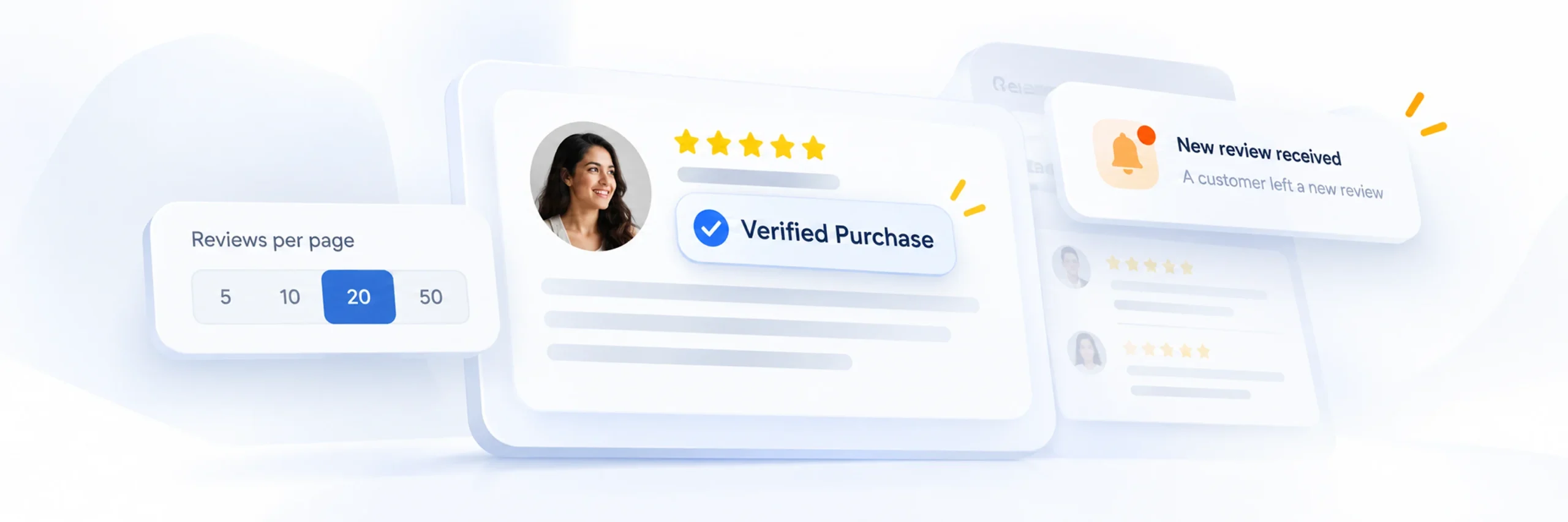
Go to Hyoka → Email Flow → Automation Rules → Reviews Pagination to set the foundation of your review display.
Set Your Pagination Limit
Choose 10, 20, 50, or 100 reviews per page — 10–20 is best for page speed and mobile UX.
Enable Verified Purchase Badges
Toggle ON so Hyoka cross-checks reviewer emails against WooCommerce order records and automatically tags genuine buyers.
Turn On Admin Notifications
Get instant email alerts whenever a new review is submitted, plus an audit log tracking order IDs and submission timestamps.
Step 4: Customize Your Review Submission Form

Head to Hyoka → Email Flow → Submission Form and decide what information shoppers provide.
Core Review Fields
These are the baseline fields every review needs — enable them to collect a rating plus a quick, scannable summary from each customer.
- Star Rating (1–5) — enabled by default
- Review Headline — a short summary like “Great quality product!”
- Review Body Text — full written feedback
Photo & Video UGC Fields
Turn these on to let customers back up their rating with real proof — this is the user-generated content that drives the most trust on a product page.
- Photo Uploads — up to 5 images per review (JPG, PNG, WEBP)
- Video Uploads — 1 video per review (MP4, WEBM, MOV)
Pre-Sale Q&A Field
Enable Customer Questions (Q&A) so shoppers can ask pre-sale questions directly on the product page.
Toggle on the fields you want, then click Save Submission Form.
Step 5: Design On-Brand Review Widgets
This is where reviews actually appear on your storefront. Go to Hyoka → Widgets to choose a template.
Choose a Widget Template
Hyoka ships with five ready-made layouts, so pick the one that matches where on your site you want reviews to show up.
- Product Review Widget — full list with a star summary header, filter bar, and submission modal
- Site Rating Widget — a compact, store-wide trust badge
- Testimonials Carousel — sliding cards for landing pages
- Card Carousel — a grid layout for featured quotes
- Video Carousel — a dedicated gallery for video UGC
Customize Layout and Style
Select a template, click Use this template, then set:
- Layout style — Standard List, Masonry Grid, or Compact Tab
- Columns — 1, 2, or 3
- Star color, size, and icon
- Card border radius, background color, font family
Click Publish when you’re happy with the design.
Step 6: Automate Post-Purchase Review Request Emails
Don’t rely on customers to leave reviews unprompted — automate the ask. Go to Hyoka → Email Flow → Automation Rules.
Turn On the Automation Master Switch
Switch it to ON so Hyoka monitors incoming orders and queues review request emails automatically.
Choose Your Trigger and Delay
This controls exactly when the request email fires, so it lands after the customer has actually had a chance to use the product.
- Trigger status — Completed (recommended, fires after fulfillment) or Processing (fires on payment)
- Delivery delay — 7–14 days is typical, giving customers time to actually use the product
Personalize the Email Template
Add your logo, subject line, and merge tags like {customer_first_name} and {product_title}. You can also send one-off requests manually via Email Flow → Manual Request using an order ID or customer email.
Step 7: Moderate Reviews and Reply as the Store Owner

Go to Hyoka → Reviews → Product Reviews to manage incoming feedback.
Filter and Review Submissions
Filter by All, Pending, Approved, Spam, or Trash, then Approve / Unapprove individual reviews with one click.
Reply to Customers Directly
Click Reply on any review card — your response appears publicly with an “Official Store Response” badge.
Use Bulk Actions and Exports
Bulk Approve, Reject, Spam, or Delete multiple reviews at once, and Export reviews to CSV for backup or reporting.
Step 8: Turn On AI-Powered Review Tools (Optional, Pro Feature)
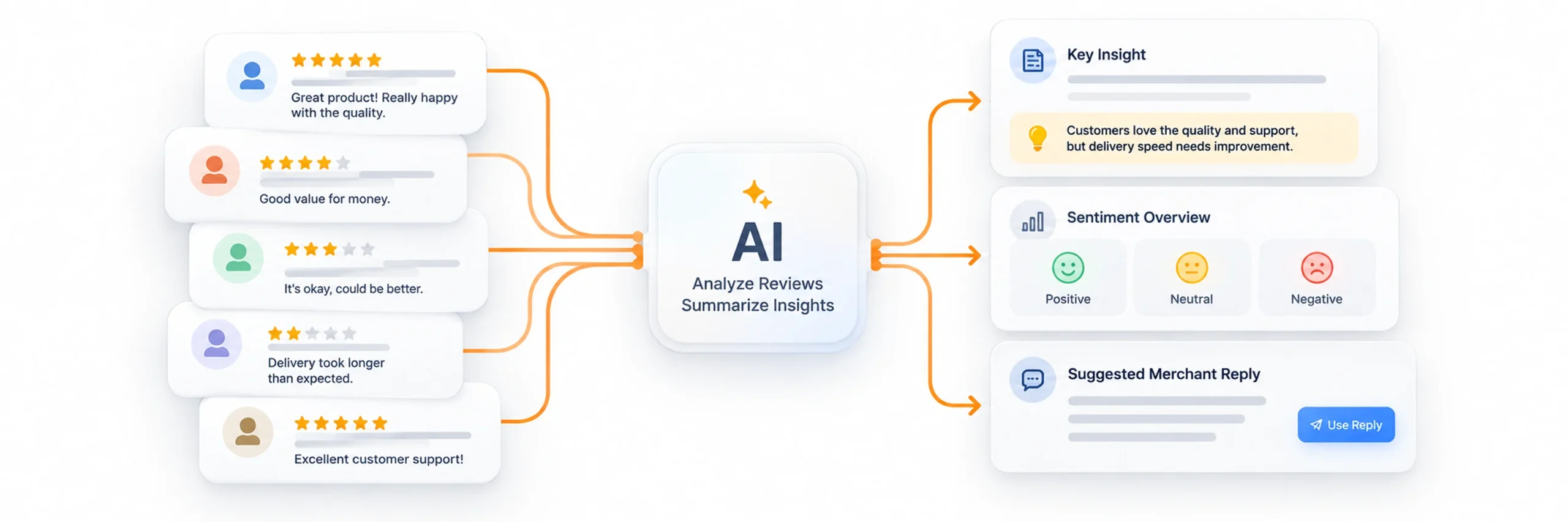
If you’re on Hyoka PRO, connect an OpenAI API key under Hyoka → Settings → AI Assistant.
AI Review Summaries
A short highlight box synthesizes dozens of reviews into 2–3 sentences displayed above the review list.
Smart Review Prompts
Category-aware questions (e.g., fit and fabric questions for apparel) that boost review quality and specificity.
NLP Sentiment Analysis
Automatic Positive / Neutral / Negative scoring with a confidence rating, viewable on your Hyoka dashboard.
One-Click AI Reply Generator
Draft merchant responses in Professional, Friendly, or Empathetic tone in a single click.
Step 9: Enable Google Rich Snippets for WooCommerce SEO

Reviews aren’t just for shoppers — they’re a direct SEO lever. Under Hyoka → Settings → SEO & Visibility (Pro feature), configure the following.
Enable AggregateRating Schema
Turn on Google Rich Snippets to inject star ratings and review counts into WooCommerce’s structured data, so they can appear directly in Google search results.
Enable Individual Review Schema
Turn on Review Rich Results to format up to 20 top reviews into individual Review schema blocks.
Create a Dedicated Reviews Page
Enable the All Reviews page to auto-generate a public /reviews/ page using the [hyoka_all_reviews] shortcode.
Add Reviews to Your XML Sitemap
Turn on Review Sitemap Entry so Hyoka automatically adds /reviews/ to your sitemap if you use Yoast, Rank Math, or AIOSEO.
This structured data is also what AI answer engines (like AI Overviews and chatbots) pull from when summarizing product quality — making rich snippets a key part of Answer Engine Optimization (AEO) and Generative Engine Optimization (GEO), not just traditional SEO.
Step 10: Embed Reviews Anywhere with Shortcodes
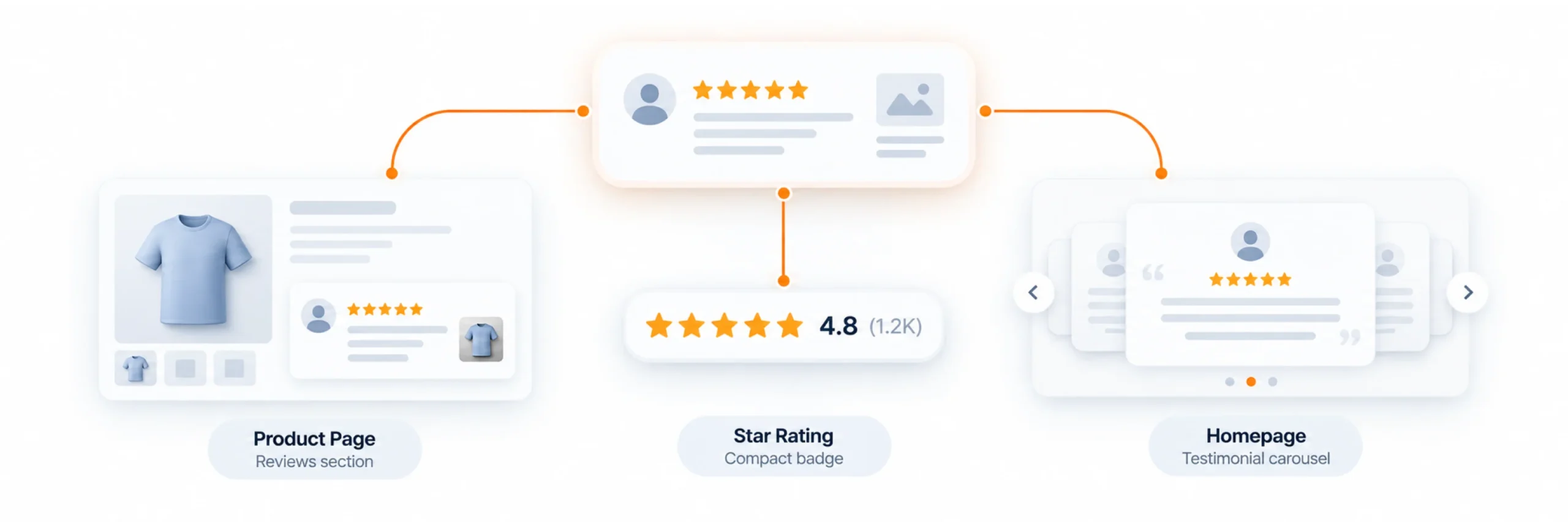
Extend reviews beyond the default product tab using shortcodes.
Main Review Widget
Use this on any custom product template or page where you want the complete review experience — list, star summary, and submission form.
[hyoka_reviews] — full review widget (product_id=”123″ targets a specific product)
Star Rating Badge
Drop a compact rating summary into spots the main widget doesn’t reach, like your theme header, footer, or a custom product grid.
[hyoka_star_rating product_id=”123″] — standalone star rating summary for headers, footers, or grids
Verified Store Badge
Display a site-wide trust signal independent of any single product’s reviews — useful on your homepage or “About” page.
[hyoka_badge type=”verified_store”] — a site-wide trust badge
Homepage Carousel
Give your homepage instant social proof by pulling in only your best-rated feedback.
[hyoka_carousel] — a sliding carousel of 4+ star reviews for your homepage
Bonus: Increase Review Volume with Incentives
More reviews mean more social proof and richer SEO content. Go to Hyoka → Settings → Loyalty & Incentives.
Enable the Master Incentive Toggle
Toggle Enable Review Incentives to ON, then choose when coupons are issued — immediately on submission, or upon admin approval (recommended for quality control).
Configure Discount Type and Value
Choose Percentage Discount or Fixed Cart Discount and set your base offer value.
Set Tiered Rewards for Photo and Video UGC
Reward richer content with bigger discounts:
- Text review → 10% off
- Review with photo → 15% off
- Review with video → 20% off
Set Expiration and Minimum Spend Rules
Define a coupon expiration period (e.g., 30 days) and an optional minimum order spend requirement.
Frequently Asked Questions
Install a dedicated review plugin like Hyoka Product Reviews, activate your license, and use the built-in Widgets Library and Submission Form Customizer — no code required. Setup typically takes under five minutes.
Yes. Enable Photo and Video Uploads under Submission Form settings to let customers attach up to 5 photos and 1 video per review, formatted as JPG, PNG, WEBP, MP4, WEBM, or MOV.
Enable Google Rich Snippets under SEO & Visibility settings. This injects AggregateRating schema markup into your WooCommerce product pages so Google can display star ratings in search results.
Yes. Turn on the Automation Master Switch under Automation Rules, choose an order status trigger (Completed is recommended), and set a delivery delay so the request email goes out after the customer has had time to use the product.
No. Hyoka includes ML-based spam filtering and bulk moderation actions (Approve, Reject, Spam, Delete) so you can manage large volumes of reviews efficiently, or rely on automated approval rules.
Final Thoughts
Adding product reviews to WooCommerce isn’t just about collecting star ratings — it’s about building a complete social proof and SEO system: verified badges, photo and video UGC, automated review request emails, AI-generated summaries, and Google rich snippets that improve both search rankings and AI-generated answers about your products.
Follow the steps above and your WooCommerce store will go from zero reviews to a fully automated, SEO-optimized review engine in under an hour.
Need help? Email support@ysinnovations.com or visit the full documentation at docs.ysplugins.com/hyoka.